
Performance Optimization
Section 16: Performance Optimization
Section titled “Section 16: Performance Optimization”16.1 What is Performance Optimization?
Section titled “16.1 What is Performance Optimization?”Performance optimization is the process of making your web application load faster, respond quicker, and consume fewer resources — so users have a smooth, responsive experience.
Think of it like this: imagine a restaurant. A slow restaurant takes 20 minutes to even bring the menu. A fast restaurant greets you, hands you the menu, and takes your order within 2 minutes. Users (and search engines) prefer the fast restaurant.
In web development, performance optimization involves:
- Reducing the amount of code the browser downloads
- Loading resources only when needed
- Caching data so we don’t re-fetch it unnecessarily
- Optimizing images and fonts
- Minimizing unnecessary re-renders in React
Without Optimization With Optimization───────────────────── ──────────────────────User visits page User visits page │ │ ▼ ▼Downloads 5MB JS bundle Downloads 200KB critical JSDownloads all images Loads only visible imagesFetches all API data Fetches only needed dataRenders everything at once Streams content progressively │ │ ▼ ▼Page loads in 8s Page loads in 1.2sUser frustrated → leaves User happy → stays16.2 Why Performance Matters
Section titled “16.2 Why Performance Matters”Performance is not just a technical concern — it directly impacts business outcomes.
| Metric | Impact |
|---|---|
| 1 second delay | 7% reduction in conversions (Amazon study) |
| 100ms improvement | 1% increase in revenue |
| 53% of users | Abandon mobile sites that take >3s to load |
| Google ranking | Page speed is a direct ranking factor since 2021 |
| Bounce rate | Slow pages have 123% higher bounce rates |
The Three Pillars of Performance
Section titled “The Three Pillars of Performance”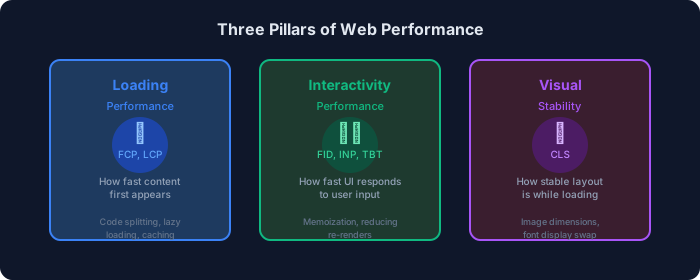
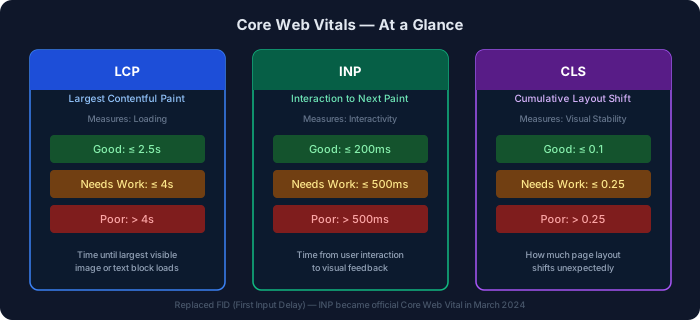
16.3 Core Web Vitals
Section titled “16.3 Core Web Vitals”Core Web Vitals are Google’s set of specific measurements that define what a good user experience looks like. They are used directly in Google’s search ranking algorithm.
16.4 Measuring Application Performance
Section titled “16.4 Measuring Application Performance”Tools for Measuring Performance
Section titled “Tools for Measuring Performance”| Tool | Type | What It Measures | When to Use |
|---|---|---|---|
| Lighthouse | Audit tool | All Core Web Vitals + more | During development |
| Chrome DevTools | Browser tool | Network, CPU, Memory | Deep debugging |
| PageSpeed Insights | Google service | Real-world + lab data | Pre/post deployment |
| WebPageTest | Online tool | Detailed waterfall | Advanced analysis |
| Vercel Analytics | Built-in | Real user data | Production monitoring |
| next/bundle-analyzer | Package | Bundle sizes | Bundle optimization |
Setting Up Bundle Analyzer
Section titled “Setting Up Bundle Analyzer”npm install @next/bundle-analyzerimport type { NextConfig } from 'next';const withBundleAnalyzer = require('@next/bundle-analyzer')({ enabled: process.env.ANALYZE === 'true',});
const nextConfig: NextConfig = { // your config here};
export default withBundleAnalyzer(nextConfig);# Run analysisANALYZE=true npm run build16.5 Code Splitting
Section titled “16.5 Code Splitting”Code splitting means breaking your JavaScript bundle into smaller chunks that are loaded only when needed, rather than loading everything upfront.
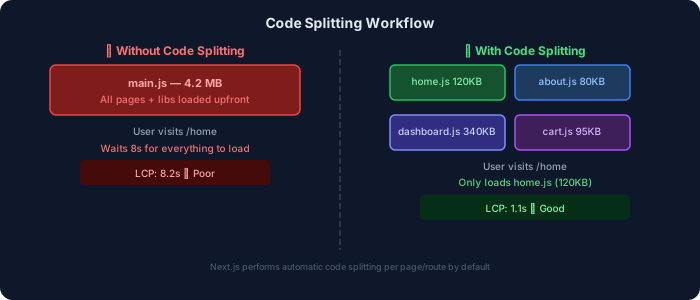
Next.js does automatic code splitting — each page gets its own bundle. But you can go further with manual code splitting using dynamic imports.
16.6 Lazy Loading & Dynamic Imports
Section titled “16.6 Lazy Loading & Dynamic Imports”Lazy loading delays the loading of resources until they’re actually needed. Dynamic imports are the JavaScript mechanism that enables lazy loading for components and modules.
Comparison: Lazy vs Normal Loading
Section titled “Comparison: Lazy vs Normal Loading”| Aspect | Normal Loading | Lazy Loading |
|---|---|---|
| When loaded | At page load (all at once) | When component is needed |
| Initial bundle size | Large | Small |
| Time to Interactive | Slow | Fast |
| UX for heavy components | Blocks rendering | Loads progressively |
| Use case | Small, critical components | Large/rarely-used components |
| Code | import Component | dynamic(() => import(...)) |
Using dynamic() in Next.js
Section titled “Using dynamic() in Next.js”import dynamic from 'next/dynamic';
// 1. Basic dynamic import — loads when component mountsconst HeavyChart = dynamic(() => import('@/components/HeavyChart'));
// 2. With loading fallback — shows skeleton while loadingconst DataTable = dynamic(() => import('@/components/DataTable'), { loading: () => ( <div className="animate-pulse bg-gray-200 h-64 rounded-lg" /> ),});
// 3. Disable SSR — render only on client// Useful for: window-dependent code, browser-only libraries (e.g., charts)const MapComponent = dynamic(() => import('@/components/Map'), { ssr: false, loading: () => <p>Loading map...</p>,});
// 4. Named export — for components not exported as defaultconst Modal = dynamic(() => import('@/components/ui/Modal').then((mod) => mod.Modal));
export default function DashboardPage() { return ( <div> <h1>Dashboard</h1> {/* HeavyChart only loads when this page is visited */} <HeavyChart /> {/* DataTable shows a skeleton while loading */} <DataTable /> {/* MapComponent never renders on the server */} <MapComponent center={[40.7128, -74.006]} zoom={12} /> </div> );}Static Imports vs Dynamic Imports
Section titled “Static Imports vs Dynamic Imports”| Feature | Static Import | Dynamic Import |
|---|---|---|
| Syntax | import X from 'x' | dynamic(() => import('x')) |
| Bundle inclusion | Always included | Only when used |
| SSR support | Yes | Optional (ssr: false) |
| Loading state | No | Yes (via loading prop) |
| Tree shaking | Full support | Full support |
| Conditional loading | No | Yes |
| Performance impact | Higher initial load | Lower initial load |
Lazy Loading Images and Third-Party Scripts
Section titled “Lazy Loading Images and Third-Party Scripts”import Image from 'next/image';import Script from 'next/script';
export default function BlogPage() { return ( <article> {/* Hero image: eager (loads immediately, above fold) */} <Image src="/hero.webp" alt="Blog hero" width={1200} height={630} priority // <-- marks as eager / LCP image />
{/* Body images: lazy (loads when scrolled into view) */} <Image src="/diagram.webp" alt="Architecture diagram" width={800} height={450} loading="lazy" // default behavior for non-priority images />
{/* Third-party script: defer until page is interactive */} <Script src="https://analytics.example.com/script.js" strategy="afterInteractive" // or 'lazyOnload' for lowest priority /> </article> );}16.7 Tree Shaking
Section titled “16.7 Tree Shaking”Tree shaking is the process of removing unused code (“dead code”) from your final bundle. The name comes from “shaking a tree to remove dead leaves.”
// ❌ Bad: Imports ENTIRE lodash library (560KB+)import _ from 'lodash';const result = _.groupBy(items, 'category');
// ✅ Good: Imports ONLY the groupBy function (~2KB)import groupBy from 'lodash/groupBy';const result = groupBy(items, 'category');
// ✅ Even better with ES modules (tree-shakeable by default)import { groupBy } from 'lodash-es';const result = groupBy(items, 'category');
// ❌ Bad: Importing full icon libraryimport * as Icons from 'lucide-react'; // imports ALL icons
// ✅ Good: Import only what you needimport { Home, Settings, User } from 'lucide-react'; // only these 3Note: Next.js and webpack/turbopack handle tree shaking automatically for ES modules. Make sure your libraries export ES modules (check for
"module"field inpackage.json).
16.8 Caching Strategies
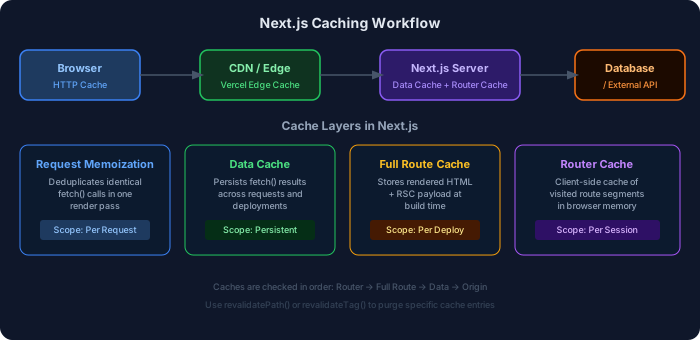
Section titled “16.8 Caching Strategies”Caching stores a copy of data so future requests can be served faster without re-fetching or re-computing.
Fetch Caching in Next.js App Router
Section titled “Fetch Caching in Next.js App Router”// 1. Default: cached indefinitely (like getStaticProps)const data = await fetch('https://api.example.com/products');
// 2. No cache: always fresh (like getServerSideProps)const freshData = await fetch('https://api.example.com/products', { cache: 'no-store',});
// 3. Revalidate after N seconds (ISR equivalent)const revalidatedData = await fetch('https://api.example.com/products', { next: { revalidate: 3600 }, // re-fetch after 1 hour});
// 4. Tag-based revalidation — invalidate by tagconst taggedData = await fetch('https://api.example.com/products', { next: { tags: ['products'] },});
// Then in a Server Action:import { revalidateTag, revalidatePath } from 'next/cache';
async function updateProduct() { 'use server'; // ... update logic revalidateTag('products'); // invalidate all fetches tagged 'products' revalidatePath('/products'); // or invalidate a specific path}16.9 Memoization
Section titled “16.9 Memoization”Memoization is a performance technique where the result of an expensive computation is cached so it doesn’t need to be recalculated if the same inputs are given again.
useMemo — Memoize Computed Values
Section titled “useMemo — Memoize Computed Values”'use client';
import { useMemo, useState } from 'react';
interface Product { id: number; name: string; price: number; category: string; inStock: boolean;}
interface ProductListProps { products: Product[];}
export default function ProductList({ products }: ProductListProps) { const [searchTerm, setSearchTerm] = useState(''); const [selectedCategory, setSelectedCategory] = useState('all'); const [sortBy, setSortBy] = useState<'price' | 'name'>('name');
// ❌ Without useMemo: runs on EVERY render (including unrelated state changes) // const filteredProducts = products // .filter(p => p.name.toLowerCase().includes(searchTerm.toLowerCase())) // ...
// ✅ With useMemo: only recalculates when dependencies change const filteredProducts = useMemo(() => { return products .filter((p) => { const matchesSearch = p.name .toLowerCase() .includes(searchTerm.toLowerCase()); const matchesCategory = selectedCategory === 'all' || p.category === selectedCategory; return matchesSearch && matchesCategory; }) .sort((a, b) => { if (sortBy === 'price') return a.price - b.price; return a.name.localeCompare(b.name); }); }, [products, searchTerm, selectedCategory, sortBy]); // ↑ Only re-runs when these values change
// Memoize expensive stats calculation const stats = useMemo(() => ({ total: filteredProducts.length, avgPrice: filteredProducts.reduce((sum, p) => sum + p.price, 0) / (filteredProducts.length || 1), inStockCount: filteredProducts.filter((p) => p.inStock).length, }), [filteredProducts]);
return ( <div> <input value={searchTerm} onChange={(e) => setSearchTerm(e.target.value)} placeholder="Search products..." /> <p> {stats.total} products | Avg: ${stats.avgPrice.toFixed(2)} |{' '} {stats.inStockCount} in stock </p> {filteredProducts.map((p) => ( <div key={p.id}>{p.name} — ${p.price}</div> ))} </div> );}useCallback — Memoize Functions
Section titled “useCallback — Memoize Functions”'use client';
import { useCallback, useState, memo } from 'react';
// Wrap child in memo so it only re-renders when its props changeconst FilterButton = memo(function FilterButton({ label, onClick, active,}: { label: string; onClick: () => void; active: boolean;}) { console.log(`FilterButton "${label}" rendered`); // only logs when props change return ( <button onClick={onClick} className={active ? 'bg-blue-500 text-white' : 'bg-gray-200'} > {label} </button> );});
export default function SearchableList() { const [filter, setFilter] = useState('all'); const [count, setCount] = useState(0); // unrelated state
// ❌ Without useCallback: new function created every render // even when count changes, FilterButton re-renders unnecessarily // const handleAll = () => setFilter('all');
// ✅ With useCallback: same function reference until dependencies change const handleAll = useCallback(() => setFilter('all'), []); const handleActive = useCallback(() => setFilter('active'), []); const handleInactive = useCallback(() => setFilter('inactive'), []);
return ( <div> {/* These buttons won't re-render when count changes */} <FilterButton label="All" onClick={handleAll} active={filter === 'all'} /> <FilterButton label="Active" onClick={handleActive} active={filter === 'active'} /> <FilterButton label="Inactive" onClick={handleInactive} active={filter === 'inactive'} />
{/* This triggers re-render of parent but NOT FilterButtons */} <button onClick={() => setCount((c) => c + 1)}> Clicked {count} times </button> </div> );}When to use
useMemovsuseCallback:
useMemo→ memoize a computed value (e.g., filtered array, statistics)useCallback→ memoize a function reference (to pass as prop to memoized children)
16.10 Image Optimization
Section titled “16.10 Image Optimization”The <Image /> component from next/image is one of Next.js’s most powerful performance features.
What <Image /> Does Automatically
Section titled “What <Image /> Does Automatically”| Feature | Description |
|---|---|
| Format conversion | Converts to WebP/AVIF (smaller than JPEG/PNG) |
| Resizing | Generates multiple sizes for different screens |
| Lazy loading | Loads images only when near viewport |
| Blur placeholder | Shows blurred preview while image loads |
| Prevents CLS | Requires width/height, reserving space |
| CDN delivery | Serves optimized images from Vercel’s CDN |
import Image from 'next/image';
interface Props {  product: {    name: string;    heroImage: string;    thumbnailImage: string;  };}
export default function ProductPage({ product }: Props) {  return (    <article>      {/* Hero image — above the fold, load immediately */}      <Image        src={product.heroImage}        alt={`${product.name} hero`}        width={1200}        height={630}        priority         // preload: this is the LCP element        quality={90}     // 90% quality (default: 75)        sizes="100vw"    // hint: takes full viewport width      />
      {/* Gallery image — below fold, lazy load */}      <Image        src={product.thumbnailImage}        alt={`${product.name} thumbnail`}        width={400}        height={400}        loading="lazy"   // explicit (this is the default for non-priority)        placeholder="blur"               // show blurred preview        blurDataURL="data:image/jpeg;base64,/9j..." // tiny base64 preview        sizes="(max-width: 768px) 100vw, (max-width: 1200px) 50vw, 400px"        // ↑ tells browser what size image to request at each breakpoint      />
      {/* Remote image from external domain */}      {/* Requires: next.config.ts → images.remotePatterns */}      <Image        src="https://cdn.example.com/photo.jpg"        alt="External photo"        fill              // fills parent container (parent must be relative)        style={{ objectFit: 'cover' }}      />    </article>  );}
// next.config.ts — allow external image domainsimport type { NextConfig } from 'next';
const nextConfig: NextConfig = { images: { remotePatterns: [ { protocol: 'https', hostname: 'cdn.example.com', port: '', pathname: '/**', }, ], // Optional: define responsive image sizes deviceSizes: [640, 750, 828, 1080, 1200, 1920, 2048, 3840], imageSizes: [16, 32, 48, 64, 96, 128, 256, 384], },};
export default nextConfig;16.11 Font Optimization
Section titled “16.11 Font Optimization”Font loading is a surprisingly common cause of poor performance and layout shift.
Why Font Loading is Tricky
Section titled “Why Font Loading is Tricky”Without optimization:
- Browser requests HTML
- Browser parses HTML, finds font
<link>or@import - Browser requests font files (can be 100KB–500KB+)
- Text is invisible (FOIT) or shown in fallback (FOUT)
- Font loads → layout shifts → CLS score suffers
next/font — The Solution
Section titled “next/font — The Solution”import { Inter, Playfair_Display, JetBrains_Mono } from 'next/font/google';import localFont from 'next/font/local';
// Google Fonts — downloaded at build time, self-hostedconst inter = Inter({ subsets: ['latin'], display: 'swap', // show fallback until custom font loads (prevents FOIT) variable: '--font-inter', // expose as CSS variable preload: true, // preload this font (default: true)});
// Display/heading fontconst playfair = Playfair_Display({ subsets: ['latin'], display: 'swap', variable: '--font-playfair', weight: ['400', '700'], // only load needed weights (reduces file size)});
// Monospace for code blocksconst jetbrainsMono = JetBrains_Mono({ subsets: ['latin'], display: 'swap', variable: '--font-mono', weight: ['400', '500'],});
// Local font (e.g., brand/custom font)const brandFont = localFont({ src: [ { path: '../public/fonts/brand-regular.woff2', weight: '400' }, { path: '../public/fonts/brand-bold.woff2', weight: '700' }, ], display: 'swap', variable: '--font-brand',});
export default function RootLayout({ children }: { children: React.ReactNode }) { return ( <html lang="en" // Apply font class names to html element className={`${inter.variable} ${playfair.variable} ${jetbrainsMono.variable} ${brandFont.variable}`} > <body className={inter.className}> {children} </body> </html> );}/* app/globals.css — using font CSS variables */h1, h2, h3 { font-family: var(--font-playfair);}
code, pre { font-family: var(--font-mono);}
.brand-text { font-family: var(--font-brand);}16.12 Bundle Optimization
Section titled “16.12 Bundle Optimization”Analyzing Your Bundle
Section titled “Analyzing Your Bundle”# Install bundle analyzernpm install @next/bundle-analyzer --save-dev
# Run build with analysisANALYZE=true npm run build# Opens interactive bundle visualization in browserStrategies to Reduce Bundle Size
Section titled “Strategies to Reduce Bundle Size”// 1. Use barrel files carefully// ❌ Bad: barrel re-exports can prevent tree shaking// utils/index.ts: export { formatDate, parseDate, ... }// import { formatDate } from '@/utils'; // may import everything
// ✅ Good: import directly from the fileimport { formatDate } from '@/utils/date';
// 2. Use lighter alternatives// ❌ moment.js — 67KB gzippedimport moment from 'moment';// ✅ date-fns — tree-shakeable, only imports what you useimport { format, parseISO } from 'date-fns';
// 3. Conditional third-party loading// ❌ Always loading heavy editorimport RichTextEditor from 'some-heavy-editor'; // 400KB
// ✅ Only load when user needs itconst RichTextEditor = dynamic(() => import('some-heavy-editor'), { ssr: false, loading: () => <div>Loading editor...</div>,});
// 4. Split large route-level code// In app/admin/layout.tsx — admin bundle is separate from public bundle// Users who never visit /admin never download admin code16.13 Rendering Performance
Section titled “16.13 Rendering Performance”Rendering Optimization Flow
Section titled “Rendering Optimization Flow”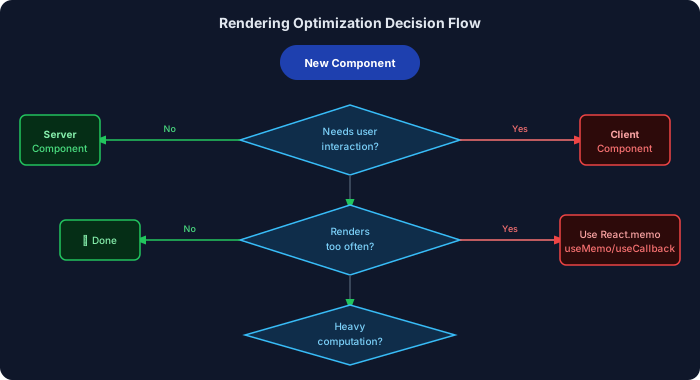
Server vs Client Rendering Performance
Section titled “Server vs Client Rendering Performance”| Metric | Server Component | Client Component |
|---|---|---|
| Bundle size | 0 (not in JS bundle) | Adds to bundle |
| Data fetching | Direct DB access | API call needed |
| First render | Fast (HTML from server) | Slower (hydration) |
| Interactivity | None | Full |
| Re-renders | No | Yes (on state change) |
| SEO | Excellent | Requires extra setup |
| Best for | Static content, data display | Forms, animations, real-time |
Reducing Re-renders
Section titled “Reducing Re-renders”'use client';
import { memo } from 'react';
interface ItemProps { id: number; name: string; price: number; onBuy: (id: number) => void; // ← must be stable (useCallback)}
// React.memo: only re-renders if props actually changedconst ProductItem = memo(function ProductItem({ id, name, price, onBuy }: ItemProps) { console.log(`ProductItem ${id} rendered`); return ( <div className="product-card"> <h3>{name}</h3> <p>${price}</p> <button onClick={() => onBuy(id)}>Buy Now</button> </div> );});
// Parent componentexport default function ProductGrid({ products }: { products: ItemProps[] }) { const [cart, setCart] = useState<number[]>([]);
// ✅ Stable function reference — ProductItem won't re-render when cart changes const handleBuy = useCallback((id: number) => { setCart((prev) => [...prev, id]); }, []); // no dependencies = created once
return ( <div className="grid"> {products.map((product) => ( <ProductItem key={product.id} {...product} onBuy={handleBuy} /> ))} </div> );}16.14 Optimizing API Calls
Section titled “16.14 Optimizing API Calls”// ❌ Bad: Sequential API calls (waterfall)// Each request waits for the previous one to completeasync function getBadData() { const user = await fetch('/api/user'); // waits... const posts = await fetch('/api/posts'); // waits after user... const analytics = await fetch('/api/analytics'); // waits after posts...}// Total time: 300ms + 200ms + 400ms = 900ms
// ✅ Good: Parallel API calls using Promise.allasync function getParallelData() { const [user, posts, analytics] = await Promise.all([ fetch('/api/user').then((r) => r.json()), fetch('/api/posts').then((r) => r.json()), fetch('/api/analytics').then((r) => r.json()), ]); // Total time: max(300ms, 200ms, 400ms) = 400ms return { user, posts, analytics };}
// ✅ Even better: React cache() for Server Components// Deduplicates identical requests across the render treeimport { cache } from 'react';
// Wrap your fetch in cache() so calling it multiple times// in one render only fetches ONCEconst getUser = cache(async (id: string) => { const res = await fetch(`https://api.example.com/users/${id}`); return res.json();});
// Now both these components can call getUser(id) but only ONE fetch occurs// app/layout.tsx — calls getUser(id) for header// app/profile/page.tsx — also calls getUser(id) for page content16.15 Suspense & Streaming
Section titled “16.15 Suspense & Streaming”Streaming allows Next.js to send pieces of the HTML to the browser progressively, rather than waiting for all data to be ready.
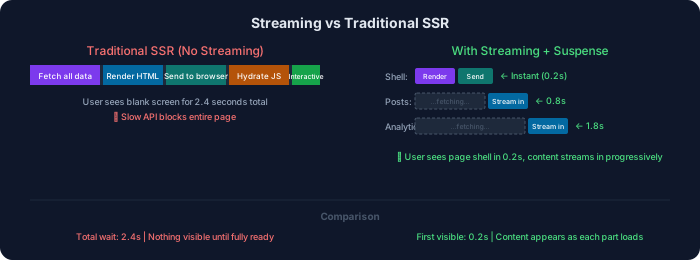
import { Suspense } from 'react';import DashboardShell from '@/components/DashboardShell';import RecentPosts from '@/components/RecentPosts';import AnalyticsWidget from '@/components/AnalyticsWidget';import RevenueChart from '@/components/RevenueChart';
// Each of these components fetches its own data// They render independently — no waterfall!
export default function DashboardPage() {  return (    <DashboardShell> {/* Static shell renders immediately */}      <div className="grid grid-cols-3 gap-4">
        {/* Fast data — shows quickly */}        <Suspense fallback={<div className="skeleton h-32" />}>          <RecentPosts /> {/* fetches /api/posts */}        </Suspense>
        {/* Medium data — streams in when ready */}        <Suspense fallback={<div className="skeleton h-64" />}>          <AnalyticsWidget /> {/* fetches /api/analytics */}        </Suspense>
        {/* Slow data — streams in last */}        <Suspense fallback={<div className="skeleton h-64" />}>          <RevenueChart /> {/* fetches /api/revenue — slowest */}        </Suspense>
      </div>    </DashboardShell>  );}
// app/dashboard/loading.tsx — automatic Suspense boundary for the whole routeexport default function DashboardLoading() { return ( <div className="animate-pulse"> <div className="h-8 bg-gray-200 rounded w-1/4 mb-4" /> <div className="grid grid-cols-3 gap-4"> <div className="h-32 bg-gray-200 rounded" /> <div className="h-32 bg-gray-200 rounded" /> <div className="h-32 bg-gray-200 rounded" /> </div> </div> );}16.16 Practical Examples
Section titled “16.16 Practical Examples”Dashboard Optimization
Section titled “Dashboard Optimization”import dynamic from 'next/dynamic';import { Suspense } from 'react';import { cache } from 'react';
// Heavy chart library — only loads client-side, shows loading stateconst AnalyticsChart = dynamic(() => import('@/components/AnalyticsChart'), { ssr: false, loading: () => <div className="h-64 bg-slate-100 animate-pulse rounded-lg" />,});
// Cached data fetcher — called multiple times but fetches onceconst getDashboardData = cache(async () => { const [metrics, recentOrders, topProducts] = await Promise.all([ fetch('/api/metrics').then(r => r.json()), fetch('/api/orders?limit=5').then(r => r.json()), fetch('/api/products?sort=revenue&limit=5').then(r => r.json()), ]); return { metrics, recentOrders, topProducts };});
export default async function AdminDashboard() { const { metrics, recentOrders, topProducts } = await getDashboardData();
return ( <div> {/* Static metrics render instantly */} <MetricCards metrics={metrics} />
{/* Chart loads lazily client-side */} <AnalyticsChart />
{/* Tables stream in progressively */} <div className="grid grid-cols-2 gap-6"> <Suspense fallback={<TableSkeleton />}> <RecentOrdersTable orders={recentOrders} /> </Suspense> <Suspense fallback={<TableSkeleton />}> <TopProductsTable products={topProducts} /> </Suspense> </div> </div> );}Blog Optimization
Section titled “Blog Optimization”import Image from 'next/image';import dynamic from 'next/dynamic';import { notFound } from 'next/navigation';
// Comment section: only loads when user scrolls to itconst CommentSection = dynamic(() => import('@/components/CommentSection'), { ssr: false, loading: () => <p className="text-gray-400">Loading comments...</p>,});
// Share widget: loads after page is interactiveconst ShareWidget = dynamic(() => import('@/components/ShareWidget'), { ssr: false,});
export default async function BlogPost({ params }: { params: { slug: string } }) { const post = await getPost(params.slug); if (!post) notFound();
return ( <article> {/* Hero image with priority (LCP element) */} <Image src={post.coverImage} alt={post.title} width={1200} height={630} priority sizes="100vw" />
<h1>{post.title}</h1>
{/* Body images without priority (lazy) */} <div dangerouslySetInnerHTML={{ __html: post.htmlContent }} />
{/* Non-critical components load lazily */} <ShareWidget url={`/blog/${params.slug}`} /> <CommentSection postId={post.id} /> </article> );}
// Generate static pages at build time for all blog postsexport async function generateStaticParams() { const posts = await getAllPostSlugs(); return posts.map((slug) => ({ slug }));}E-commerce Optimization
Section titled “E-commerce Optimization”import dynamic from 'next/dynamic';import Image from 'next/image';import { Suspense } from 'react';
// Heavy components loaded lazilyconst ProductReviews = dynamic(() => import('@/components/ProductReviews'));const SizeGuide = dynamic(() => import('@/components/SizeGuide'), { ssr: false });const RelatedProducts = dynamic(() => import('@/components/RelatedProducts'));
export default async function ProductPage({ params }: { params: { id: string } }) { // Fetch critical data in parallel const [product, inventory] = await Promise.all([ getProduct(params.id), getInventory(params.id), ]);
return ( <div> <div className="grid grid-cols-2 gap-8"> {/* Product images — first one is priority */} <div> {product.images.map((img, i) => ( <Image key={img.url} src={img.url} alt={`${product.name} - view ${i + 1}`} width={600} height={600} priority={i === 0} // only first image is priority sizes="(max-width: 768px) 100vw, 50vw" /> ))} </div>
{/* Product info — static, renders instantly */} <div> <h1>{product.name}</h1> <p>${product.price}</p> <StockBadge inventory={inventory} /> <AddToCartButton productId={product.id} /> <SizeGuide /> {/* modal, ssr=false */} </div> </div>
{/* Non-critical sections stream in */} <Suspense fallback={<ReviewsSkeleton />}> <ProductReviews productId={product.id} /> </Suspense>
<Suspense fallback={<ProductGridSkeleton />}> <RelatedProducts categoryId={product.categoryId} excludeId={product.id} /> </Suspense> </div> );}16.17 Lighthouse & Debugging Tools
Section titled “16.17 Lighthouse & Debugging Tools”Running a Lighthouse Audit
Section titled “Running a Lighthouse Audit”- Open Chrome DevTools (
F12) - Click the Lighthouse tab
- Select: Performance, Best Practices, SEO
- Click Analyze page load
Reading Lighthouse Results
Section titled “Reading Lighthouse Results”| Score Range | Rating | Color |
|---|---|---|
| 90–100 | Good | 🟢 Green |
| 50–89 | Needs Improvement | 🟡 Yellow |
| 0–49 | Poor | 🔴 Red |
Key Lighthouse Metrics to Watch
Section titled “Key Lighthouse Metrics to Watch”| Metric | What It Measures | How to Improve |
|---|---|---|
| FCP (First Contentful Paint) | Time to first content | Reduce server response time, remove render-blocking resources |
| LCP (Largest Contentful Paint) | Time to main content | Optimize hero image, add priority prop |
| TBT (Total Blocking Time) | JS blocking main thread | Code split, reduce JS, lazy load |
| CLS (Cumulative Layout Shift) | Layout stability | Add width/height to images, avoid dynamic content insertion |
| Speed Index | How fast content appears visually | Streaming, Suspense |
Performance Debugging in DevTools
Section titled “Performance Debugging in DevTools”# Profile CPU usage1. Chrome DevTools → Performance tab2. Click Record → interact with page → Stop3. Look for long tasks (>50ms), layout/paint bottlenecks
# Check bundle contents1. DevTools → Network tab → filter by JS2. Look for large files3. Run: ANALYZE=true npm run build (for bundle analyzer)
# Memory leaks1. DevTools → Memory tab2. Take heap snapshots3. Compare before/after interactions16.18 Best Practices & Common Mistakes
Section titled “16.18 Best Practices & Common Mistakes”✅ Best Practices
Section titled “✅ Best Practices”- Use
priorityon LCP images — the hero/banner image should always havepriority - Always specify
sizeson<Image />— tells browser what size to request - Use Server Components by default — only add
'use client'when needed - Move client components down — keep interactive islands small
- Parallel data fetching — use
Promise.allnot sequentialawait - Use
next/font— prevents FOUT/FOIT, eliminates layout shift - Cache aggressively, revalidate intentionally — use
revalidateTag - Add
loading.tsxfiles — instant streaming skeleton - Memoize expensive calculations —
useMemofor computed values - Lazy load non-critical components — charts, modals, editors
❌ Common Mistakes
Section titled “❌ Common Mistakes”- Adding
'use client'at layout level — makes entire subtree client-side - Forgetting
priorityon hero images — poor LCP scores - Using
<img>instead of<Image />— loses all optimization benefits - Sequential
awaitfor unrelated data — creates request waterfall useMemoon everything — memoization has a cost; only use for expensive operations- Not specifying
sizeson responsive images — browser loads wrong image size - Importing full libraries —
import _ from 'lodash'pulls in 560KB+ - Ignoring bundle analyzer output — hidden large dependencies
- Client components that only show data — should be Server Components
- No
loading.tsxor Suspense boundaries — users see blank pages
16.19 Interview Questions
Section titled “16.19 Interview Questions”Beginner
Section titled “Beginner”Q1: What is the purpose of the <Image /> component in Next.js?
It automatically optimizes images by converting them to modern formats (WebP/AVIF), resizing for different screen sizes, lazy loading by default, and preventing layout shift by requiring width/height.
Q2: What is code splitting and does Next.js do it automatically?
Code splitting divides the JS bundle into smaller chunks loaded on demand. Yes, Next.js automatically splits code per route — each page gets its own bundle.
Q3: What is the difference between useMemo and useCallback?
useMemomemoizes a computed value (runs a function and caches its return value).useCallbackmemoizes a function reference itself (useful for passing stable callbacks to memoized child components).
Intermediate
Section titled “Intermediate”Q4: Explain the difference between Next.js’s 4 caching layers.
(1) Request Memoization: deduplicates same
fetch()calls in one render. (2) Data Cache: persistsfetch()results across requests. (3) Full Route Cache: stores rendered HTML at build time. (4) Router Cache: client-side cache of visited routes in browser memory.
Q5: When would you use dynamic(() => import(...), { ssr: false })?
When a component uses browser-only APIs (like
window,document, WebGL) or client-only libraries (e.g., D3 charts, Leaflet maps) that cannot run during server-side rendering.
Q6: How does Suspense improve perceived performance?
Suspense allows components to render a fallback (skeleton) while waiting for async data/code. Combined with streaming, the server sends HTML progressively — users see content appear piece by piece rather than waiting for everything.
Advanced
Section titled “Advanced”Q7: How would you optimize an e-commerce product page to get a Lighthouse score above 90?
(1) Hero image with
priority, correctsizes. (2) Server Component for static product data. (3) Parallel fetch for product + inventory. (4) Dynamic imports for reviews, related products. (5)next/fontfor fonts. (6) Suspense boundaries for streaming. (7) React.memo + useCallback for interactive elements.
Q8: What is the performance impact of improper use of useMemo?
useMemohas an overhead cost: it stores the value, compares dependencies on every render, and uses memory. If the computation is cheap (simple addition, accessing a property),useMemocan actually make performance worse. It should only be used for genuinely expensive calculations or to maintain stable object references.
Q9: How does Next.js’s streaming differ from traditional SSR and static generation?
Traditional SSR waits for all data, then sends complete HTML. Static generation pre-renders at build time. Streaming sends the page shell immediately, then streams in each Suspense boundary’s content as its data resolves — achieving fast TTFB and progressive rendering without the limitations of static generation.